

FAQ

1. Download App
-
Download Airgle Mobile App and register an account:
-
iOS: Download App
-
Android: Download App
-
-
Connect the phone to the WIFI network. The WIFI network must be single-band 2.4GHz. 5GHz and dual-band 2.4/5GHz are not supported.
-
Activate the Bluetooth function of the phone to help connect successfully.
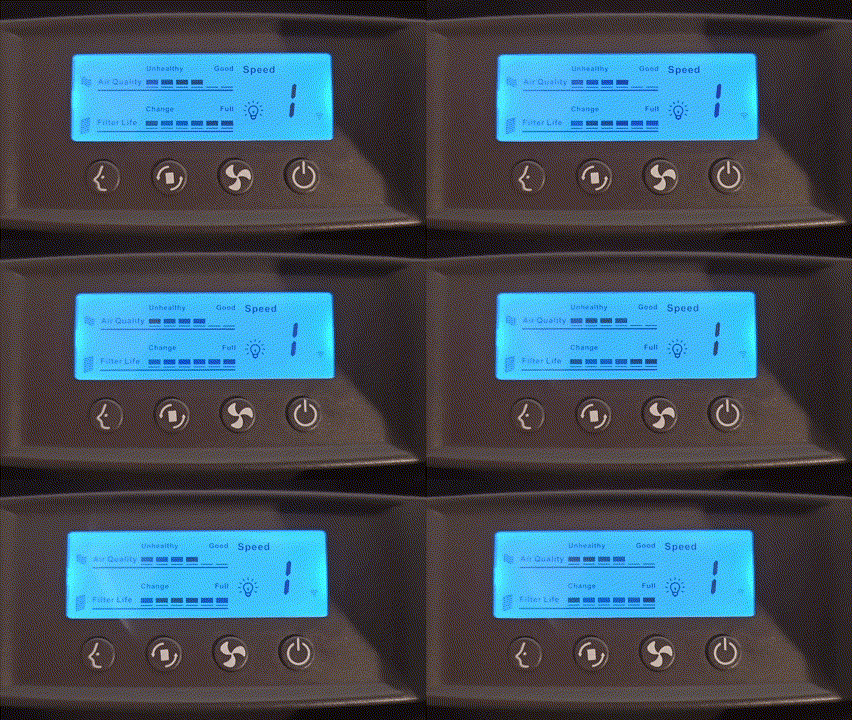
2. หน้าจอปรากฎ สัญญาณ WIFI กระพริบถี่
-
เปิดเครื่องฟอกอากาศ Airgle กดปุ่น Reset ค้างไว้จนขึ้นสัญญาณ WIFI จะเห็นสัญญาณ WIFI ปรากฏแบบกระพริบถี่
-
หากไม่มีสัญญาณ WIFI ขึ้น ให้ปิดเครื่อง ถอดปลั๊ก และรอประมาณ 10 วินาที จึงเริ่มเปิดเครื่องใหม่อีกครั้ง เพื่อทำการล้างระบบ จากนั้นเปิดเครื่องอีกครั้ง กดปุ่น Reset ค้างไว้จนขึ้นสัญญาณ WIFI
-
(สัญญาณ WIFI ที่ขึ้น จะต้องกระพริบแบบถี่ หากกระพริบช้า กรุณาทำตามขึ้นตอนที่ 3 หากกระพริบถี่สามารถข้ามไปขั้นตอนที่ 4)

3. ในกรณีที่หน้าจอปรากฎ สัญญาณ WIFI กระพริบช้า
-
ในกรณีที่สัญญาณ WIFI กระพริบช้า ให้กดปุ่ม Reset ค้างไว้จนขึ้นสัญญาณ WIFI และปรากฏแบบกระพริบถี่
-
หมายเหตุ 1 : WIFI กระพริบถี่ คือการใช้การเชื่อมต่อแบบ EZ Mode
- หมายเหตุ 2 : WIFI กระพริบช้า คือการใช้การเชื่อมต่อแบบ AP Mode
-
หมายเหตุ 3 : สัญญาณ WIFI กระพริบจะหายไปหลังจาก 3 นาที หากไม่มีการเชื่อมต่อ หากหายไป สามารถเปิดปิดเครื่องใหม่เพื่อทำการรีเซ็ทค่า WIFI ได้อีกครั้ง

4. ขึ้นตอนการเชื่อมต่อ แบบ Auto Scan (Recommendation*)
-
วางโทรศัพท์ของคุณไว้ใกล้กับเครื่อง
-
เปิด Application Airgle ทำการ Login เข้าระบบ
-
เมื่อ Login เสร็จเรียบร้อย กดเครื่องหมาย + ที่ด้านบนขวาของหน้าจอ เพื่อเพิ่ม Device
-
กดเลือก Device แบบ Auto Scan เพื่อให้เครื่องค้นหา Device
-
(หากเครื่องไม่สามารถค้นหาได้ ให้เปลี่ยนการเชื่อมต่อแบบ Add Manually)

5. ขึ้นตอนการเชื่อมต่อ แบบ Add Manually ด้วย EZ Mode
-
การเชื่อมต่อแบบ Manual จะมีการเชื่อมต่อ 2 Mode : EZ Mode และ AP Mode โดยเราแนะนำให้ใช้ EZ Mode
-
เช็คสัญญา WIFI กระพริบอีกครั้งว่า กระพริบแบบถี่หรือไม่ หากไม่ให้ทำการรีเซ็ตใหม่ตั้งแต่ขั้นตอนแรก
-
เมื่อเข้าสู่หน้าเชื่อมต่อแบบ Add Manually และทำการเลือกรุ่นของเครื่องที่ต้องการเชื่อมต่อ จากนั้นจะเข้าสู่หน้าการเลือก WIFI ให้ใช้ WIFI สำหรับคลื่นความถี่ 2.4GHz เท่านั้น (5GHz และ dual-band 2.4/5GHz จะไม่รองรับ)
-
จากนั้น Application จะทำการค้นหาเครื่อง Airgle เพื่อเชื่อมต่ออัตโนมัติ

6. ขึ้นตอนการเชื่อมต่อ แบบ Add Manually ด้วย AP Mode
-
ในกรณีที่ AZ Mode ไม่สามารถทำงานได้ ท่านสามารถเชื่อมด้วย AP Mode โดยการกดเปลี่ยนสัญลักษณ์ Mode ด้านบนขวา
-
เช็คสัญญา WIFI กระพริบอีกครั้งว่า กระพริบแบบถี่หรือไม่ หากไม่ให้ทำการรีเซ็ตใหม่ตั้งแต่ขั้นตอนแรก
-
เมื่อเข้าสู่หน้าเชื่อมต่อแบบ Add Manually และทำการเลือกรุ่นของเครื่องที่ต้องการเชื่อมต่อ จากนั้นจะเข้าสู่หน้าการเลือก WIFI ให้ใช้ WIFI สำหรับคลื่นความถี่ 2.4GHz เท่านั้น (5GHz และ dual-band 2.4/5GHz จะไม่รองรับ)
-
เชื่อมโทรศัพท์ของคุณเข้ากับเครื่อง Airgle ด้วยการเข้า WIFI setting จากนั้นทำการค้นหา hotspot ชื่อว่า "SmartLife-XXXX" และกดเชื่อมต่อ
-
Application จะทำการค้นหาเครื่องและเชื่อมต่ออัตโนมัติ โดยสามารถปล่อยให้ Application ค้นหาและทำการติดตั้งประมาณ 1-2 นาที

7. เชื่อมต่อสำเร็จ
-
เมื่อเชื่อมต่อแอพพลิเคชั่นกับเครื่องฟอกอากาศ Airgle สำเร็จ ไอคอน WIFI จะหยุดกะพริบและเปลี่ยนเป็นรูปร่างดังรูปด้านบน
-
คุณสามารถปรับระดับความแรงลม ตั้งเวลาการทำงานประจำวัน เปิดใช้งานระบบล็อคเพื่อความปลอดภัยสำหรับเด็กและการตั้งค่าอื่น ๆ ได้ที่แอพพลิเคชั่น สำหรับรายละเอียดเพิ่มเติม โปรดดูคู่มือผู้ใช้
FAQ
-
How to identify the WIFI network is 2.4GHz or 5GHz?
You can download this file to learn how to distinguish WIFI networks on PC, iOS phones and Android phones.
-
Can I connect to a mixed dual-band 2.4/5GHz WIFI network?
Airgle does not support mixed dual-band 2.4/5GHz. WIFI network needs to be set to a single-band 2.4GHz.
-
Can I connect to WIFI 6?
Yes, WIFI 6 is supported as long as the WIFI network is a single-band 2.4GHz.
-
After the App is successfully connected to the Airgle, does the phone still need to be connected to WIFI (2.4GHz) to control the Airgle?
After the connected successfully, the mobile phone does not need to connect to the WIFI (2.4GHz). You can use other networks or data networks to control Airgle devices at anywhere.
-
How to reconnect Airgle?
Unplug the power cord to completely power off the Airgle. Wait for 10 seconds to plug again the power cord. Turn on the Airgle, press the reset button for 5 seconds, the WIFI icon will appear and flash rapidly (flashing 2 times per second), then you can follow the above steps to reconnect the Airgle.
-
The "Add Manually" in the APP has "Wi-Fi Quick Connect (EZ mode)" or "Hot Spot Configuration (AP mode)". What is the difference?
Compared with AP mode, EZ mode is easier to connect during the first network pairing. However, some mobile phones and devices are not compatible with EZ mode and need to be connected using AP mode.
-
How to share Airgle device to other family members?
First, one of the mobile apps must successfully connect to the Airgle, and then share it with other family members. The sharing process is as follows:
-
Open the APP and click on "Me" in the main menu
-
Click "Device Location Management"
-
Click "Add Member"
-
Enter "Member Name" and "Account (Mobile Number/Email)"
-
The new members will be notified. They need to click "Accept Invitation" to complete the process